Uninstalling EmailShot and Removing Its Access
You can remove EmailShot at any time. Uninstalling takes it out of Gmail, Google Calendar, Docs, Sheets and Slides, and you can also remove the access you gave it to your Google Account.
Before You Uninstall: Delete Links You Want to Stop Working
EmailShots you've shared are deleted from the EmailShot card in Gmail. If you want any of those links to stop working, open each email, open EmailShot and click Delete before you uninstall. Once EmailShot is gone from Gmail, you can't open that card any more. If you've already uninstalled, contact us and we'll help.
Option 1: Uninstall from the Google Workspace Marketplace
- Make sure you're signed in to the Google account you installed EmailShot on.
- Open the EmailShot page in the Google Workspace Marketplace. Where it used to say Install, it now says Uninstall.
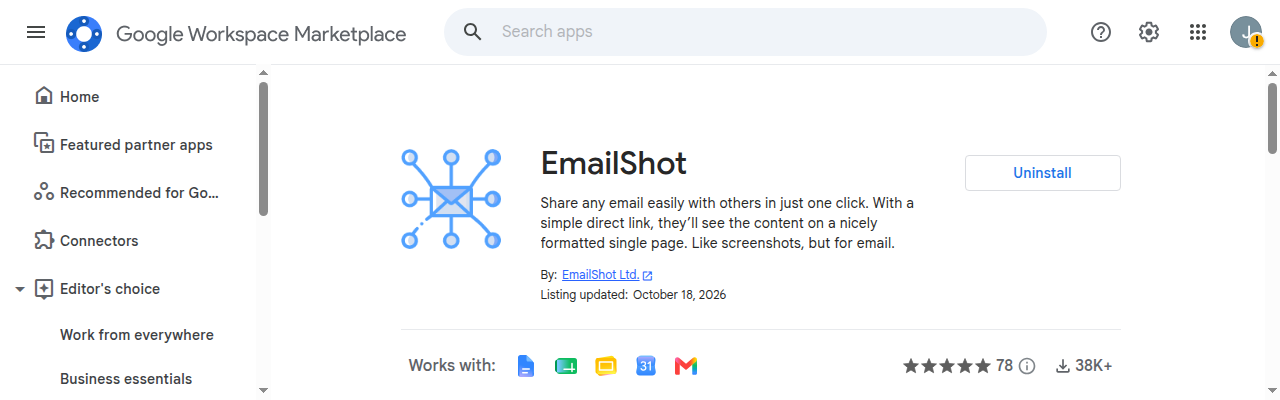
- Click Uninstall and confirm.
Reload Gmail and the EmailShot icon disappears from the side panel. There's nothing extra to do on your phone: the Gmail app follows your Google account.
Option 2: Remove EmailShot's Access to Your Google Account
When you installed EmailShot, you gave it some permissions. Google lists them, and lets you remove them, under Linked apps:
- Go to Linked apps in your Google Account.
- Click EmailShot.
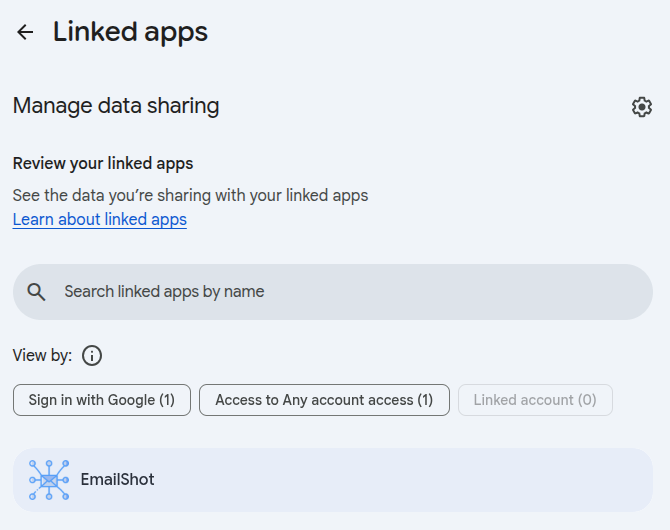
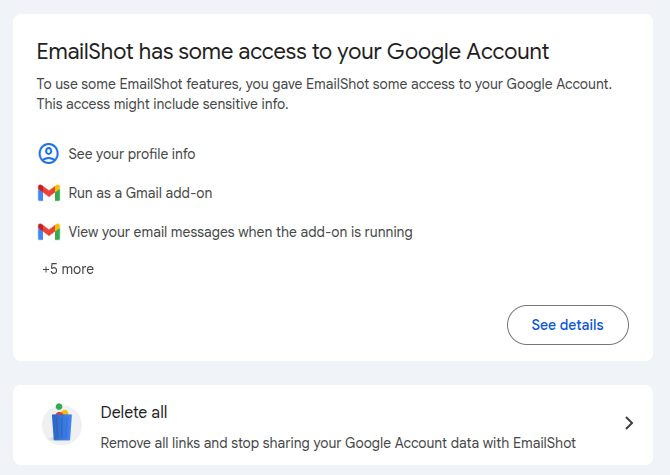
- The page shows the access EmailShot has, such as Run as a Gmail add-on and View your email messages when the add-on is running. Click Delete all ("Remove all links and stop sharing your Google Account data with EmailShot") and follow Google's prompts.
Doing both, uninstalling and removing the access, takes EmailShot off your account completely.
Work or School Accounts
If your administrator installed EmailShot for your whole organization, you may not be able to uninstall it yourself. Ask your administrator to remove it for you.
Changed Your Mind?
You can reinstall EmailShot at any time: see How to Install EmailShot. You'll be asked to grant the permissions again.
We'd love to know why you're leaving. Tell us what we could do better.