How to Install EmailShot from the Google Workspace Marketplace
EmailShot is a Google Workspace add-on. You install it once from the Google Workspace Marketplace, and it then shows up in Gmail on the web and in the Gmail app on your phone. It works with personal @gmail.com accounts and with Google Workspace (business and school) accounts, and installing takes about a minute.
Installing for a whole organization? Google Workspace admins can install EmailShot domain-wide so every user gets it without installing it themselves.
Before You Start
- Sign in to the right Google account. EmailShot is installed for the account shown in the top-right corner of the Marketplace. If you use several Google accounts in the same browser, check that it's the one you read your email with.
- Work or school account? Your administrator may only allow approved add-ons. If you can't install EmailShot, ask them to allowlist it or install it for you.
Step 1: Open EmailShot in the Marketplace
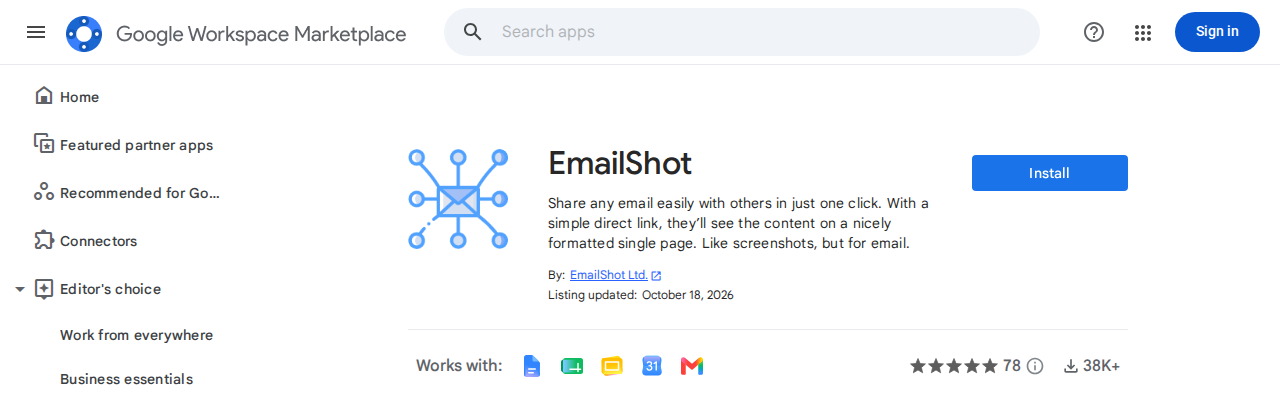
Go to the EmailShot page in the Google Workspace Marketplace and click Install.
Step 2: Confirm Your Account
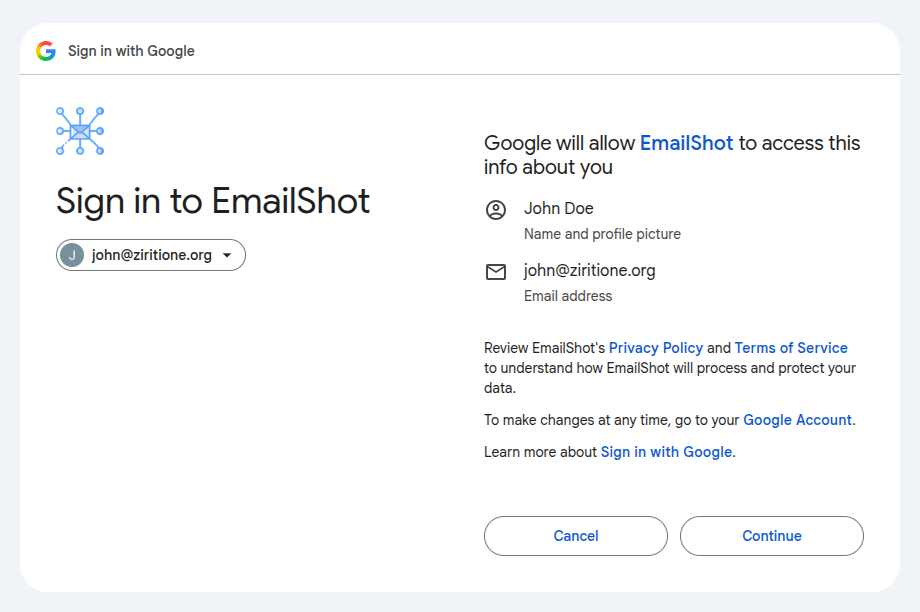
A Sign in to EmailShot window opens. It shows the account EmailShot will be installed for, plus the name, profile picture and email address that EmailShot receives. To pick a different account, click the account name under Sign in to EmailShot.
Click Continue.
Step 3: Allow Access
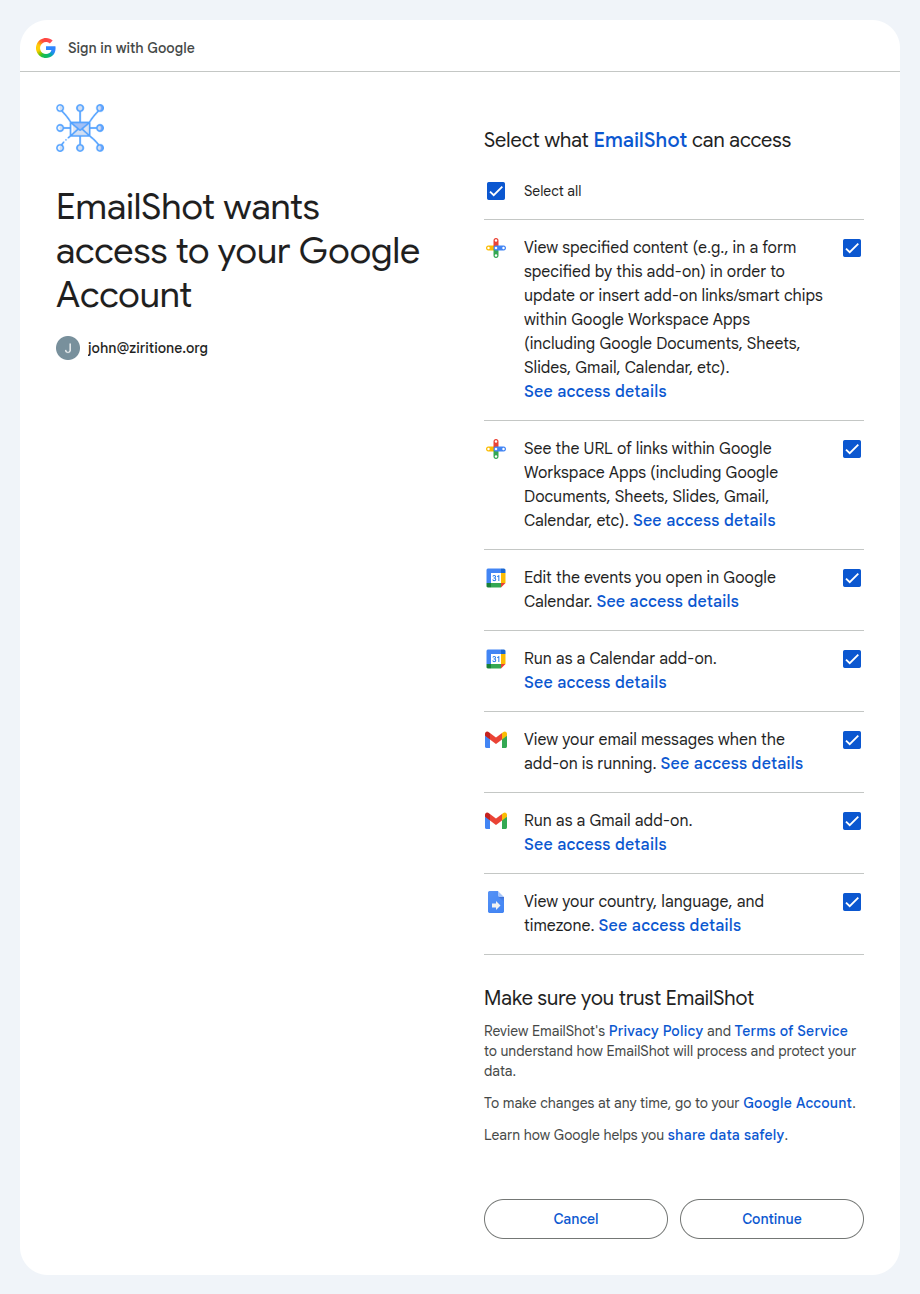
Next, Google lists what EmailShot can access, with a checkbox for each permission. The boxes start unticked. Tick Select all, then click Continue.
What the permissions are for:
- Gmail (Run as a Gmail add-on and View your email messages when the add-on is running): these let EmailShot open in Gmail and read the email you choose to share. Without them, EmailShot can't work in Gmail.
- Google Calendar (Run as a Calendar add-on and Edit the events you open in Google Calendar): only needed to attach an email to a Calendar invite. If you leave them unticked, EmailShot asks for them again the first time you use it in Calendar.
- Links in Docs, Sheets and Slides: these power EmailShot Smart Chips, the previews that appear when you paste an EmailShot link into a document.
- Country, language and timezone: lets EmailShot match your language settings.
For the full list with the exact scope names, see EmailShot OAuth Permissions Explained.
Step 4: Finish the Install
You'll see EmailShot has been installed! Click Done.
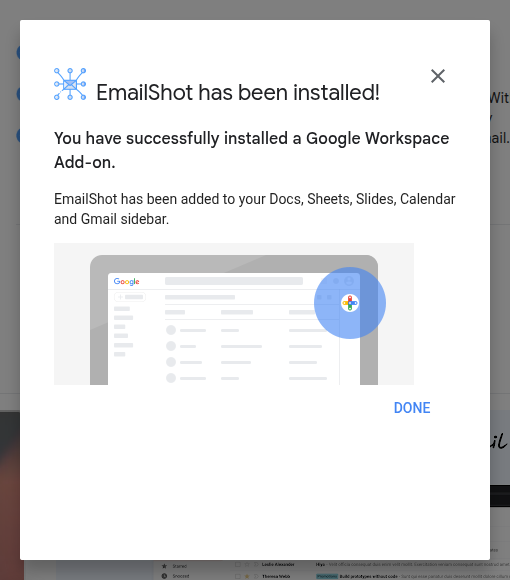
EmailShot is now added to Gmail, Google Calendar, Docs, Sheets and Slides. The Marketplace page now shows an Uninstall button instead of Install.
Step 5: Find EmailShot in Gmail
Open Gmail, or reload it if it was already open. The EmailShot icon appears in the side panel on the right, below Calendar, Keep, Tasks and Contacts. The first time, Gmail points it out with an EmailShot was installed tip.
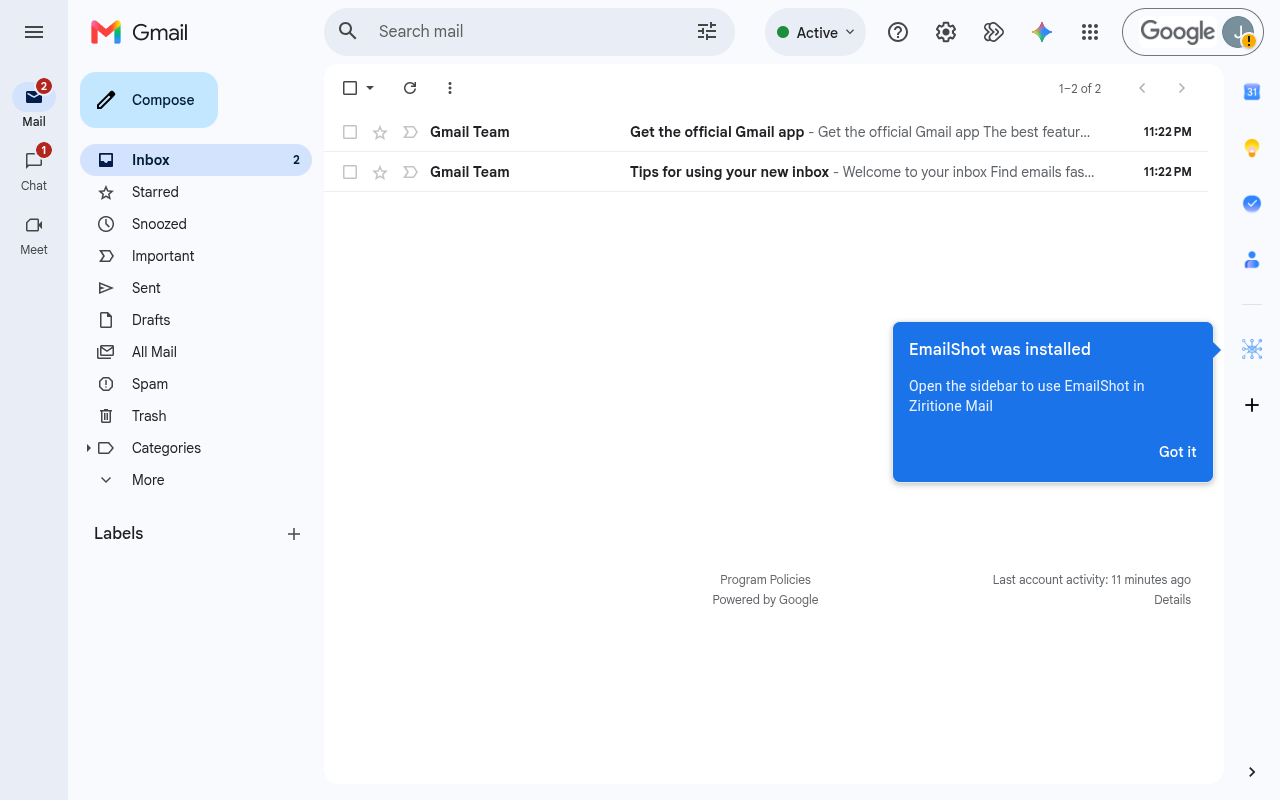
If you don't see the side panel, click the small arrow in the bottom-right corner of Gmail to show it.
Step 6: Share Your First Email
- Open the email you want to share.
- Click the EmailShot icon in the side panel.
- Click EmailShot it! to create a link to that email.
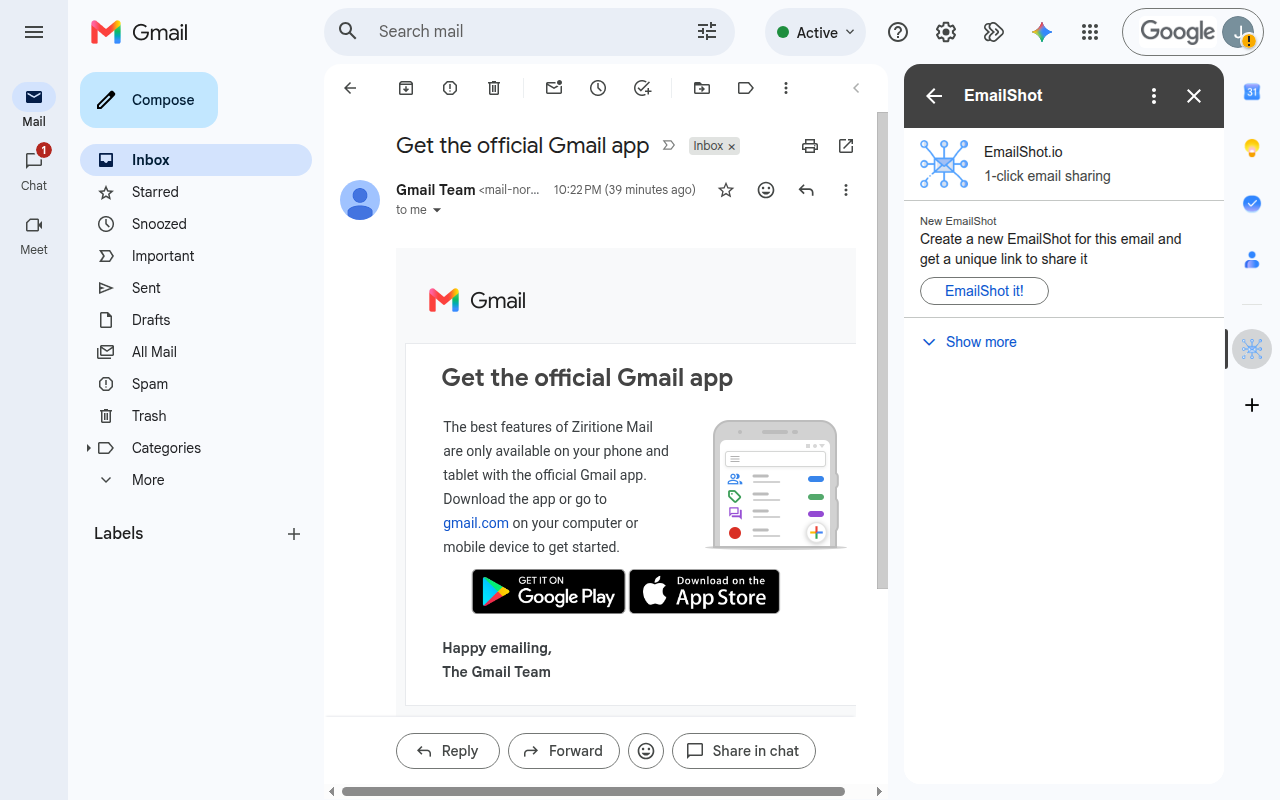
Click Show more before creating the link to hide the sender and recipient addresses or set an expiration date. See EmailShot creation options for details.
That's it: EmailShot is ready to use. For more on sharing options and what recipients see, see Creating Your First EmailShot.
Using EmailShot on Your Phone
There's nothing else to install. Once EmailShot is installed on your Google account, it also appears in the Gmail app on iPhone and Android, at the bottom of an open email. See Using EmailShot on Mobile. If the icon doesn't show up right away, close the Gmail app completely and open it again.
Troubleshooting
- The EmailShot icon doesn't appear in Gmail. Reload Gmail, and make sure the side panel isn't hidden. If you use several Google accounts, check that you're in the one you installed EmailShot for.
- You can't install EmailShot on a work or school account. Your organization restricts Marketplace add-ons. Ask your administrator to allowlist EmailShot or install it for the domain.
- You want to remove EmailShot. Open the EmailShot Marketplace page while signed in to that account and click Uninstall.
Still stuck? Contact us and we'll help you get set up.