Deleting an EmailShot
Deleting an EmailShot makes its link stop working for everyone you shared it with. You delete it from the EmailShot card of the email you shared, in Gmail.
Step 1: Open the Email in Gmail
Open the email you made the EmailShot from. If you've moved it to Trash, move it back to your inbox first: Gmail doesn't let add-ons work with emails in the Trash.
Step 2: Open EmailShot
Click the EmailShot icon in the side panel on the right. For an email you've already shared, the card shows when you saved it, its link, Share and a Delete button.
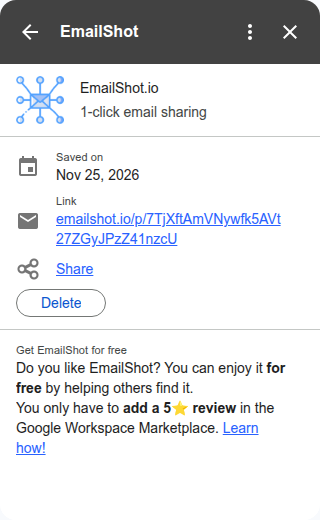
The Gmail app on your phone shows the same card at the bottom of the email. See Using EmailShot on Mobile.
Step 3: Click Delete, then Delete Permanently
Click Delete. EmailShot asks you to confirm: "This will permanently delete the EmailShot and its link will stop working."
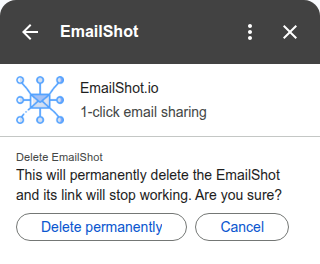
Click Delete permanently. Gmail shows "EmailShot deleted", and the card goes back to New EmailShot, as for an email you've never shared. Changed your mind? Cancel leaves the EmailShot as it was.
What Happens When You Delete an EmailShot
- The link stops working everywhere. Anyone who opens it, from an email, a chat, a Calendar event or a QR code, gets a "Not Found" page instead of the email.
- Smart Chips stop showing the email. A chip in a Google Doc, Sheet or Slide shows "EmailShot not available" instead. See EmailShot Smart Chips.
- It leaves your Recent EmailShots. It's no longer offered in Gmail, Calendar or Docs.
- EmailShot deletes its copy of the email. You can't undo this.
- Your email in Gmail isn't touched. Deleting the EmailShot doesn't delete, move or change the email itself.
What Deleting Doesn't Undo
- Copies people already made. If someone saved the email as a PDF, exported it as Markdown, printed it or took a screenshot, deleting the EmailShot doesn't affect their copy.
- Sharing the same email again brings the link back. Each email has one EmailShot link. If you click EmailShot it! on the same email later, you get the same link as before, and it works again for anyone who still has it.
Deleting the Email Doesn't Delete the EmailShot
Deleting an email in Gmail leaves its EmailShot, and its link, working. To stop the link, delete the EmailShot first, then the email. If you've already deleted the email for good, contact us with the link and we'll delete the EmailShot for you.
The same goes for uninstalling EmailShot: delete the EmailShots you want to stop working first, because you need the add-on to delete them.