Sharing and Exporting an EmailShot: Link, QR Code, Markdown and PDF
Every EmailShot opens on its own page, and that page has a Share this email button. Use it to pass the email on, open it on another device, or export it as Markdown or PDF. The button is there for everyone who opens the link, not just the person who created the EmailShot.
Share the Link
Click Share this email:
- On phones, tablets, and browsers that support sharing (such as Chrome on Windows and macOS, Edge or Safari), your device's share menu opens so you can send the link to an app or contact.
- Otherwise, the link is copied and you see Link copied to clipboard. Paste it wherever you need it.
The arrow next to the button opens more options:
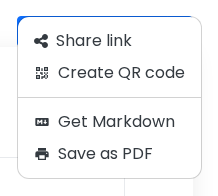
Share link does the same as the main button.
Open It on Another Device with a QR Code
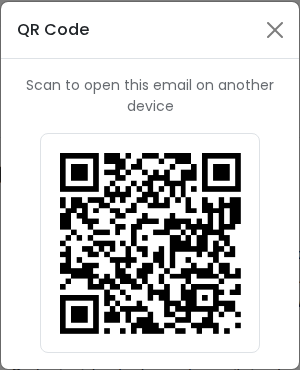
Choose Create QR code. Scan the code with your phone's camera to open the same email there, which is handy for reading a long email or a boarding pass on the go.
Export as Markdown
Choose Get Markdown to open the email as Markdown in a new tab. It starts with the subject as a heading, then the From, To and Date lines, then the body with its links and images. That makes it easy to paste into notes apps, wikis or AI tools.
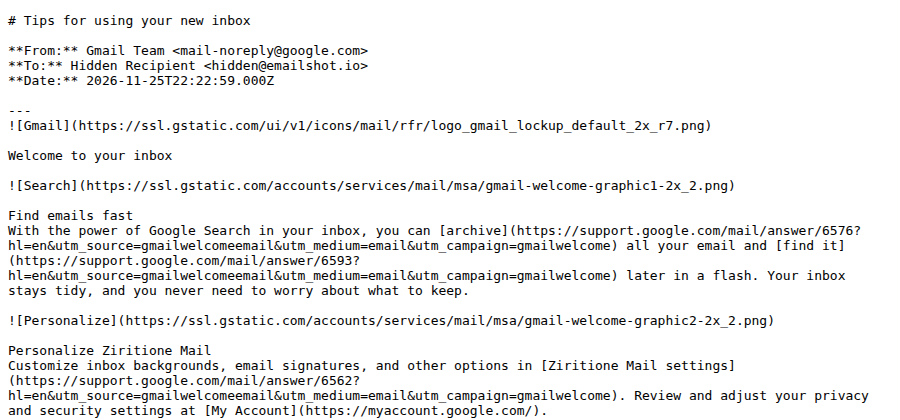
You can also add /md to the end of any EmailShot link, for example https://emailshot.io/p/…/md.
Save as PDF
Choose Save as PDF. A print-ready copy of the email opens in a new tab with your browser's print dialog. Set the destination to Save as PDF (or Microsoft Print to PDF on Windows) and save.
The PDF ends with a QR code and the EmailShot link, so anyone reading the printout can scan it to open the original email online.
If nothing opens, your browser may have blocked the new tab: allow pop-ups for emailshot.io and try again.
What's Included
Exports and shares include only what the EmailShot shows. If you removed your address or the sender's when you created it, they stay hidden in the Markdown and PDF too, so check the creation options before sharing something sensitive.
For more on why these formats are useful, see Export Emails as Markdown or PDF.