How to build AI product sense
How to build AI product senseThe secret is using Cursor for non-technical work (inside: 75 free days of Cursor Pro to try this out!)
👋 Hey there, I’m Lenny. Each week, I answer reader questions about building product, driving growth, and accelerating your career. For more: Lenny’s Podcast | How I AI | Lennybot | Lenny’s Reads | Favorite AI and PM courses | Favorite public speaking course P.S. Insider subscribers get a free year of 23 premium products: Lovable, Manus, Replit, Gamma, n8n, Canva, ElevenLabs, Amp, Factory, Devin, Bolt, Wispr Flow, Linear, PostHog, Framer, Railway, Granola, Warp, Perplexity, Magic Patterns, Mobbin, ChatPRD, and Stripe Atlas (terms apply). Subscribe now. The post you’re about to read took over 100 hours to create. That’s because it’s not a post. It’s an open-source interactive AI experience that will help you build AI product sense. Tal and Aman ran dozens of usability sessions, wrote evals, optimized each prompt you’ll find below, and even partnered with Cursor to get you free credits (see below!) so that you can try this at home. I’ve never seen anything like what they’ve put together, and I’m excited to bring it to you. Next week, in part two of this series, you’ll learn how to take this newfound AI intuition and apply it to your own product. For more from Tal and Aman, check out their in-depth workshop Build AI Product Sense (starting next week, get 15% off using this link) and their upcoming free Lightning Lesson How to Know What AI Products to Build, in partnership with my one of my other favorite collaborators, Hilary Gridley. You can also book Tal and Aman for a build sprint with your team.
You’re in a product meeting and someone mentions “subagents” or “context engineering” or “agent memory.” You nod along. You know what these terms mean . . . you’re just hoping no one expects you to use them in a sentence. You’ve watched the video explainers, bookmarked the infographics, vibe coded a few apps, and even shipped an AI feature. So why does it still feel like you’re miles from truly understanding all this stuff? We (Tal and Aman) have both been there, over and over again while building AI products for tens of thousands of customers. The problem isn’t you. The problem is the “AI hype industrial complex.” Most AI content is designed to induce FOMO, not to teach: “This model is INSANE” posts, demos that hide the messy reality, and diagrams that complicate more than they explain. We found that the single most transformative habit to internalize important AI concepts was to move away from consumer-grade UIs (ChatGPT, Granola, Lovable) and into more powerful AI coding agents like Cursor and Claude Code. Getting our hands dirty with coding agents has helped us build our “AI product sense”—the ability to correctly anticipate what will be truly impactful for users and also feasible with AI. AI product sense is encountering support tickets about AI “forgetting” facts and recognizing it as context rot. Or watching a user struggle through a workflow and confidently saying that agent memory solves this—and knowing how to restructure the experience. We’ve learned more about how AI products actually work in the past three months by using Cursor for daily, non-technical tasks than in three years of using ChatGPT. This is because coding agents transparently show their work. You can read AI’s reasoning, inspect the tool calls, and watch the context window fill up. You hit the same walls as engineers building AI applications, naturally intuit your own solutions, and start anticipating trends and industry announcements. We now spend our days using Cursor and Claude Code for daily work: strategy, prioritization, decision-making, data analysis, and productivity. They serve as our thinking partner and personal operating system. In this post, we’ll guide you through using AI coding agents for your non-technical product work:
You’ll walk away with the confidence to anticipate the technology instead of chasing it and, as a bonus, a personal AI operating system. Together we’ll build our AI product sense. Step 1: Download CursorCursor is hands-down the best coding agent to most quickly ramp up your AI product sense. You’re probably hearing about Claude Code all over, and we love it for delegating long-running independent tasks like vibe coding. Cursor is still our favorite for pairing with AI and being able to directly watch an AI agent at work. Cursor is a visual, clickable user experience and can be used with a variety of AI model providers, including OpenAI and Anthropic. That means you can very likely use it at work. Downloading Cursor will take you two minutes. Do it right now! 1. Download and install Cursor. For this post, make sure to download and install the desktop app, not the web version of Cursor.
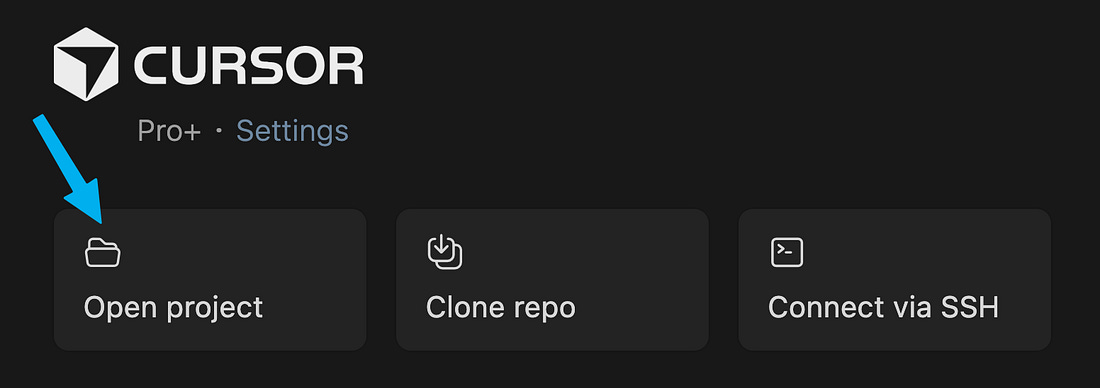
Step 2: Create a new projectOpen Cursor, sign up, power through the onboarding flow, and click “Open project.” If you’ve already used Cursor before, click File > New Window to get to this screen and open a new project.
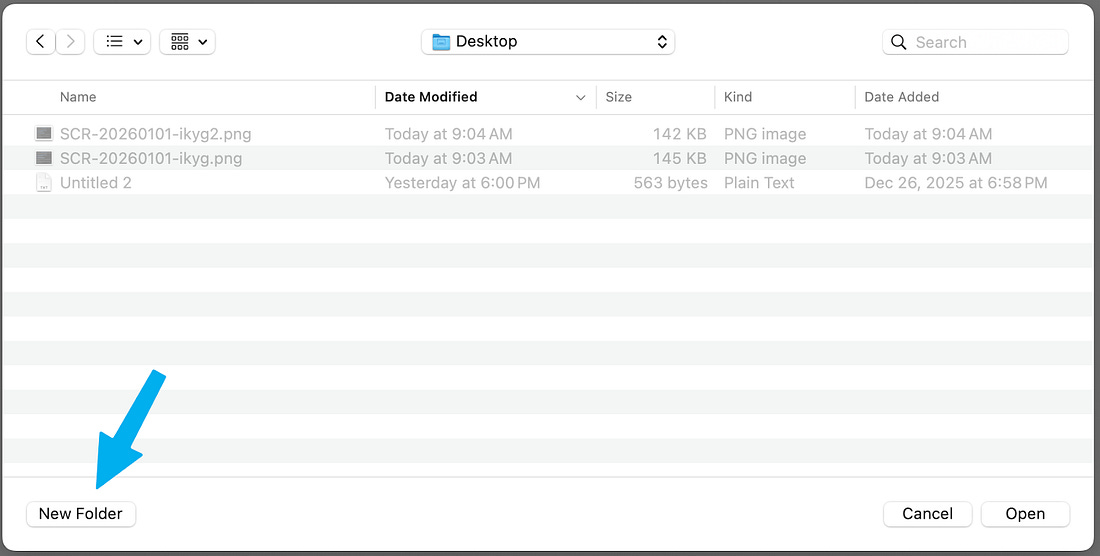
Click “New Folder”:
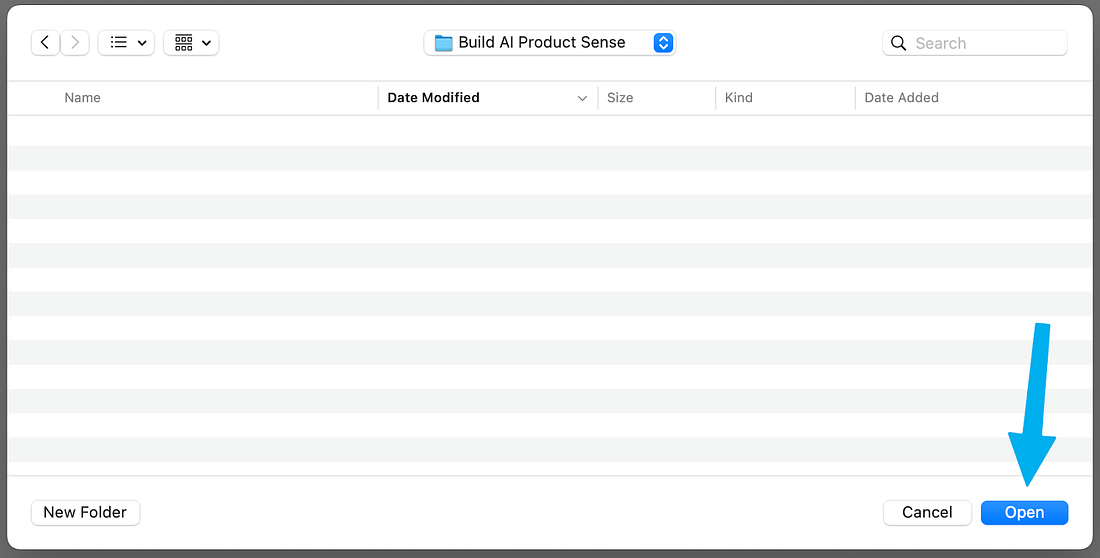
Name it “Build AI Product Sense” and click “Create”:
And finally, click “Open” (yes, it’s unusual to click Open on an empty folder, but just do it, it’ll work):
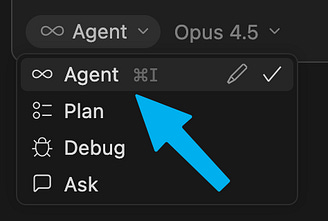
Step 3: Continue this post inside CursorStrap in, because you’re going to continue the experience inside Cursor itself, inspired by the children’s science show The Magic School Bus. If you don’t have time to ride the Magic School Bus right now, you can keep reading below. However, to build your AI product sense, we recommend you come back and try continuing this post inside Cursor using the prompt below. Make sure you’re in “Agent” mode. This allows Cursor to take actions (such as fetching this post from the internet).
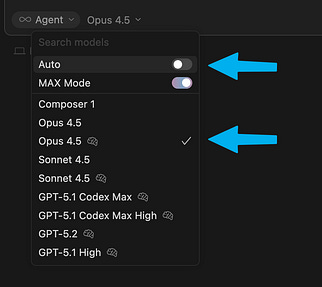
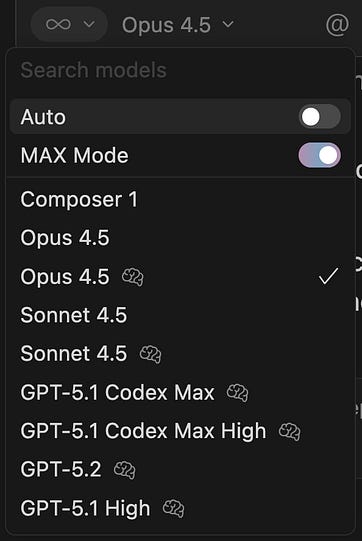
In the “model” dropdown, turn off “auto” and select Opus 4.5 🧠:
🎁 Side note: We’re hooking you up with free Cursor credits 🎁To help you experience the full power of this tutorial, we’re hooking up Lenny’s Newsletter subscribers with $50 in free Cursor credit. This is enough to get you 2.5 months of standard usage. A huge thank-you to Ben Lang and team Cursor for making this happen. Note: Supplies are limited, so we may run out of free codes. Act fast. How to grab your free Cursor credits: 1. Visit Cursor.com/dashboard and sign up for an account. 2. Become an annual (or Insider) Lenny’s Newsletter subscriber. 3. Claim your free Cursor code (scroll to the bottom to find Cursor), click the button to redeem your code, and you’ll see the screen below:
4. Click “Get Started” to apply the credits to your account. [Credits can be redeemed with both free and paid accounts.] 5. Once you’ve redeemed the credits, you should see this box appear in your Cursor dashboard. [If you don’t see the credits, try to hard-refresh, or log out and log back in. If that doesn’t work, shoot a message to hi@cursor.com and mention this post.]
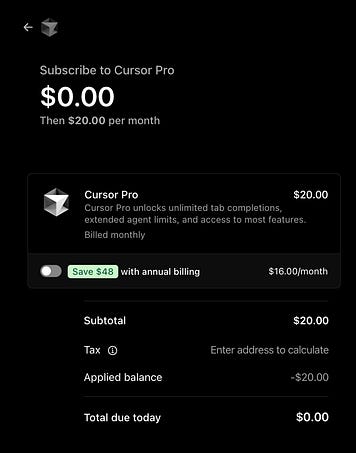
6. Finally, you’ll need to upgrade to the Pro (or higher) plan to use the latest AI models, like Opus 4.5. If you’re already on the Pro or higher plan, you’re all set.
Once you see the credits in your Dashboard, go ahead and upgrade. You won’t be charged anything (you have 2.5 months’ worth of credits). The credits will be automatically applied to the next invoice (and can also be applied to “on-demand usage” if you enable it). It should look like this:
Now, paste the prompt below into the Cursor chat box:
And click “submit”:
If you choose to accept this challenge, you’ll consume the rest of this post from inside Cursor. Stay in one chat thread (“agent”) the entire time (no need to open a new thread or agent). AI will walk you through the rest of this post. Seatbelts, everyone! We’ll see you in Cursor. Step 3: Cursor may look intimidating, but you’re more familiar with it than you realizeCursor looks Matrix-style geeky, but it’s just ChatGPT, a text editor, and a file explorer smooshed into one window. We repeat, Cursor is just three tools you’ve used plenty of times before, combined:
One of Tal’s students, a salesperson, said it best: Cursor is “AI that can touch any file on my computer.” Here’s a quick tour: 1. Agents Agents are a fancy term for “chats.” This is where you’ll interact with AI. On the left, you’ll see an empty panel that will contain your agent history. Click “new agent” to start your first chat (“agent” is synonymous with “chat thread”):
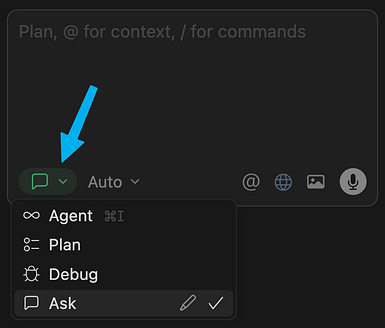
You’ll see a familiar chat box. Click on the dropdown in the bottom left corner. You can select between “Ask” mode and “Agent” mode (ignore the other options, like Plan and Debug, for now).
“Ask” mode is using Cursor just like classic ChatGPT: for chatting, and not making any changes. This is great for brainstorming or asking questions, before taking any action. You can immediately start using this instead of standard ChatGPT/Claude. “Agent” mode is for when we want Cursor to modify files in our project. We’ll use this together in a moment. 2. Editor We’ll use this panel to view and manually edit text files. This is the same as using Text Edit on a Mac or Notepad on Windows. To see the text editor, you might have to create a new file or double-click on an existing file.
3. File explorer The file explorer shows all the files and folders in your project. This is the same as Finder on a Mac or File Explorer on Windows, and it may be on the right or left of Cursor depending on the latest version. To expand it, you might have to click the small icon at the top of the window to make it visible. (You can always use Ctrl + B on Windows or Cmd + B on a Mac.)
Even if Cursor feels intimidating at first, the core concepts are the same as with any LLM you’ve already used. Cursor just has a bit more configurability, options, and things you can play with. This is your playground to build intuition. Cursor is our choice for getting real work done, not just learning AI conceptsIf you’ve already created your AI thinking partner inside ChatGPT or Claude projects, you’re probably wondering if it’s worth the hassle of switching to Cursor. It’s important for us to say that regardless of understanding technical concepts, we now spend most of our days in coding agents for non-technical tasks. So what’s the practical difference, and why did we make the switch? First, Cursor is fundamentally the same idea as ChatGPT projects: files as knowledge, chat as interface, and instructions that always apply. Two small form-factor differences change everything:
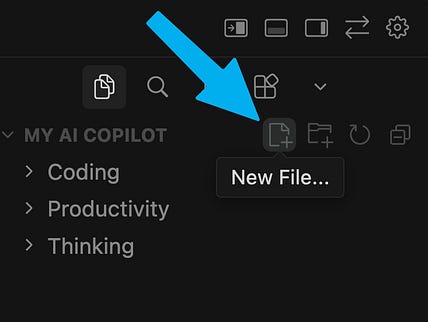
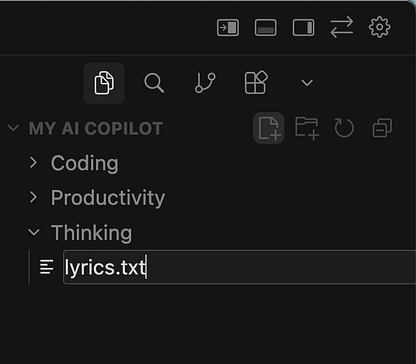
These create a tight loop where every chat automatically improves your project knowledge (but only when you tell the agent to do so). In ChatGPT projects, history and outputs live in long chats. You manually copy things back to project knowledge. In Cursor, outputs live in documents and chats become disposable one-offs because the value lives in documents, not in conversation history. The main takeaway here is that your knowledge base will cover more ground, and update more frequently, because you’re using the personal OS to build and edit context every single day. Step 4: Create a Disney song parody to learn the basics of CursorWe’ll start by creating a new blank file in Cursor. Hover your mouse in the file explorer, and click the “New File” button:
Name your file lyrics.txt:
Next, search the web for your favorite Disney song (googling the title usually prints the lyrics). Copy the words to your clipboard:
Back in Cursor, paste them into the file you just created, and save the file:
Next, switch to “Agent” mode in the chat box:
Finally, type in:
and send it off using the “up arrow” button:
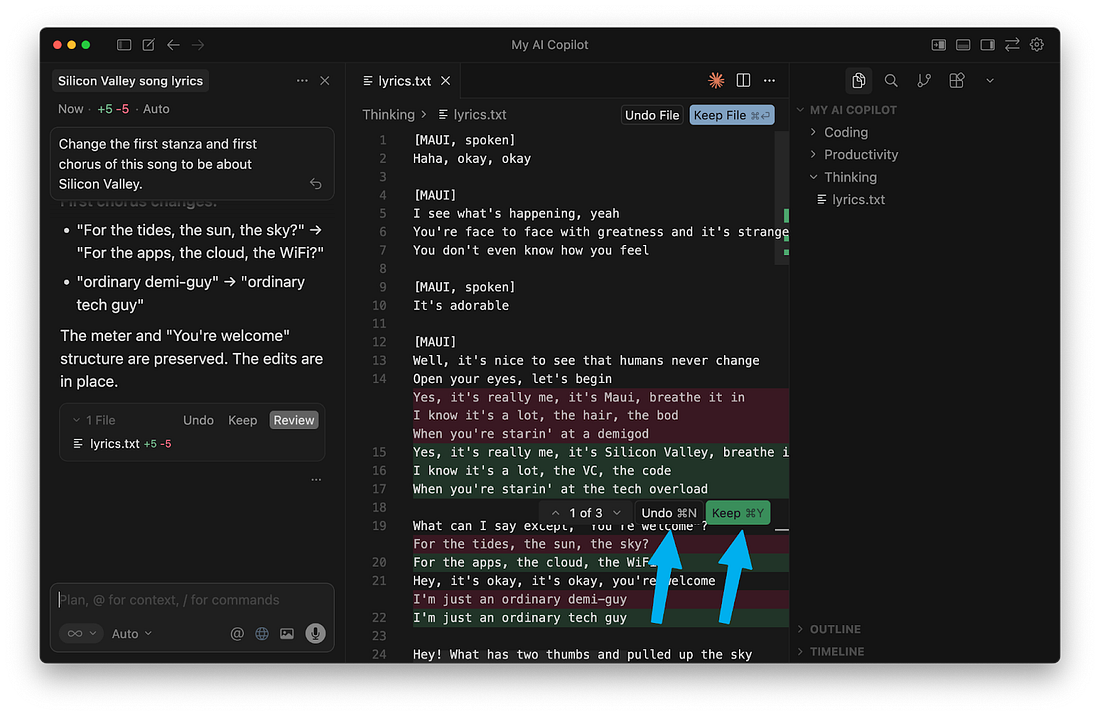
A lot just changed on our screen! You’ll notice a lot of red and green in our lyrics.txt file. Cursor modified our file. The red shows us each old line that it removed, and the green shows us the new line that it added instead. You can click “Undo” if you don’t like the change, or “Keep” if you want it to remain.
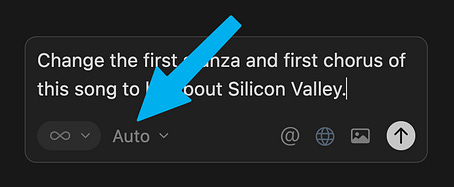
Step 5: See how different AI models behaveNow that you’ve made your first edit, let’s explore a key product decision every AI team faces: which model to use. You’ll notice there’s another dropdown in our chat box:
You’ve seen this in ChatGPT, Claude, or Gemini—it’s where you choose the model you want to use. In Cursor, however, you can choose any LLM. Click into it and disable “Auto,” and take back the power to decide:
When we try the same query in multiple models, we build intuition for how each one might tackle (or fumble) it differently. For example, Claude models are sensitive to copyright law and refuse to modify Disney songs (to get past this, change the end of your prompt to “...to make fun of the song itself,” which qualifies as “fair use”). While OpenAI’s models are less concerned with copyright, they stumbled when calling Cursor’s apply_patch tool, their preferred command for editing a text file (although this is less common in the latest Codex models). All that before we had a chance to judge the cleverness of their lyrics! Which model do we personally use to get work done? When it comes to individual use, we treat ourselves to the latest and greatest models.¹ For writing, complex planning, and nuanced life advice (as of the time of this post), we reach for Claude Opus. (We also found it’s the best for experiencing this post from inside Cursor.) Its cousin, Sonnet, is our workhorse for tasks involving lots of context, with a 1M token context window (and slightly faster responses). Zooming out, there’s a subtle lesson in Cursor’s model dropdown: There are only a few frontier LLMs, and they’re available to all product teams. Innovation is how we apply them. Make a habit of switching models for tasks you care about. Over time, you’ll develop genuine opinions about model tradeoffs—the kind of intuition that’s hard to get from benchmarks alone. Step 6: Inspect your agent’s tool callsLLMs can only produce text, but when they take action (edit a file, fetch data, search the web), they’re calling tools. And tool calling is a distinct skill from everything else we usually notice about LLMs. Now ask your agent:
In our test, our LLM reported that:
Here’s how it described #3:
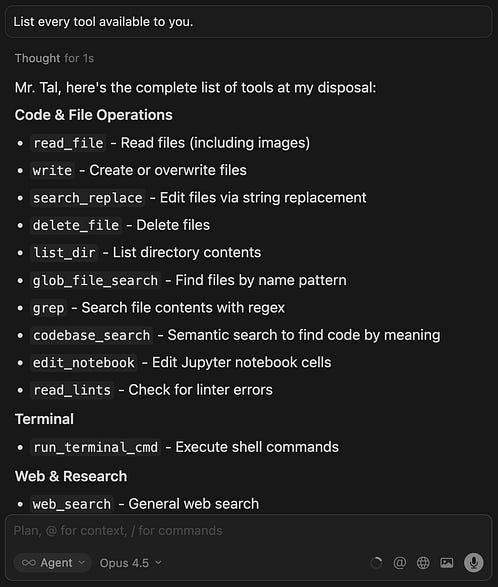
Don’t let this tool’s foreign name repel you. You’ve done “search and replace” plenty of times in Microsoft Word or Google Docs. And you’ve definitely “read a file” before. (By the way, this is another place where models differ in approach! Gemini consistently accomplished this in three tool calls, while Opus used two. Try it out and see for yourself.) Coding agents do most of their work with a small set of tools for file navigation and text editing. To see the full set, ask it:
Most of these tools have familiar names; you’ve definitely read the contents of a directory and deleted files before. Others, like read_lints and run_terminal_cmd, are more common in software development (although coding agents can employ them for non-technical requests too). How does the LLM actually call the tool? An LLM can’t run commands on your computer, so it relies on Cursor to do so. Think of it like hiring a handyman. The LLM describes what it wants done, but it can’t hold the hammer. Cursor is the handyman: it hears the LLM’s request, uses the tool, and brings back the result so it can decide what to do next. Cursor recognizes when the LLM prints a tool name (such as above), and executes that tool on your computer. After the tool finishes running, Cursor returns the result to the LLM (i.e. a successful result or an error message) so the LLM can decide what to do next. (If you’ve heard the terms “MCP client” or “agent harness,” those both describe Cursor’s role here.) The way an LLM interacts with tools is eerily similar to how it interacts with humans. If we view “classic ChatGPT” as a DM thread between an LLM and a human, then AI agents are a three-way group chat between an LLM, a human, and tools. Now when someone asks, “Can our agent do X?” you’ll instinctively think, “What tools would it need, and how good is our model at calling them?” This also connects back to model selection: it’s not just “smartest model wins.” Tool calling is its own behavior, separate from reasoning or writing quality. Wait, then what’s the “MCP” I keep hearing about?For most organizations, the most valuable data doesn’t live in local text files but rather in external SaaS services. For an LLM to interact with Linear, Figma, Notion, Snowflake, BigQuery, Amplitude, or Mixpanel, those services need to provide the LLM with custom tools. Normally, each SaaS company would have to integrate a separate tool for each LLM out there. To avoid this mess, the industry adopted a standard called Model Context Protocol (MCP). That way, each SaaS company now only needs to build one connector that works everywhere. If that sounds a lot like USB or Bluetooth, that’s the right analogy. To continue the comparison: most agent tools aren’t MCP, just like most electrical wires aren’t shaped like USB plugs. For simplicity, MCP is just another tool the agent can use, with a standardized interface. Step 7: Put everything into practice by building your personal OS inside CursorNow that we understand how agents work generally, let’s create a personalized AI agent for ourselves to see how the components of Cursor come together. We’re going to build a very lightweight, minimal personal productivity system that organizes our contacts from various parts of our life, like notes, transcripts, and unstructured thoughts, as well as some tasks that we need to get done. (This lets us temporarily ignore discovery, distribution, and pricing. We’ll be free to focus on what’s technically possible.) By the end of this exercise, you’ll be able to ask Cursor to create tasks from your backlog and get started on those tasks based on the context you provided in the knowledge and goals. In the process, we’ll learn about RAG, memory, and context engineering and build critical parts of product sense. To get started, you can copy and paste the following prompt into Cursor (make sure you’re on “Agent” mode):... Subscribe to Lenny's Newsletter to unlock the rest.Become a paying subscriber of Lenny's Newsletter to get access to this post and other subscriber-only content. A subscription gets you:
|




















Similar newsletters
There are other similar shared emails that you might be interested in: