How to Embed Emails in Google Docs, Sheets, and Slides
Google Workspace's Smart Chips feature lets you embed rich, interactive references to external content directly inside Google Docs, Sheets, and Slides. You've probably seen Smart Chips for Google Drive files, calendar events, or contacts — where a link collapses into a compact chip that shows a hover preview without leaving the document.
EmailShot extends this to email. Once you have an EmailShot link, you can paste it into any Google Workspace document and convert it to a Smart Chip — giving your teammates an inline, hoverable preview of the email without cluttering the document or sending them off to their inbox.
This guide explains how it works, when to use it, and the practical workflows where it makes the biggest difference.
What Are Smart Chips?
Smart Chips are interactive link previews native to Google Workspace. Rather than displaying a raw URL, Google Docs converts supported links into a compact chip showing a title and icon. When you hover over the chip, a preview card appears with more information — without opening a new tab or leaving the document.
Google supports Smart Chips natively for:
- Google Drive files (Docs, Sheets, Slides, etc.)
- Google Calendar events
- Google Contacts
- Google Maps locations
- Third-party integrations registered with Google — including EmailShot
EmailShot Smart Chips display the email's subject line as the chip label, and the hover preview shows a rendered preview of the email content. This means anyone reading your document can instantly see the email being referenced without having to open a link, search their inbox, or ask you to forward it.
For more background on Smart Chips generally, see the official Google support page.
Setting Up: What You Need
To use EmailShot Smart Chips, you need:
- EmailShot installed in your Gmail account — available from the Google Workspace Marketplace
- A Gmail account (personal or Google Workspace)
- A Google Doc, Sheet, or Slide where you want to embed the email
That's it. No additional configuration is needed — Smart Chip support is built into EmailShot automatically.
How to Create an Email Smart Chip
Step 1: Generate an EmailShot link
Open Gmail and find the email you want to embed. Click the EmailShot icon in the Gmail toolbar (or in the add-on sidebar on mobile). EmailShot generates a shareable link and copies it to your clipboard.
If you want to configure privacy options before sharing — such as anonymizing the sender's name or setting an expiration date — you can do that in the EmailShot panel before copying the link. See the EmailShot creation options guide for details.
Step 2: Paste the link into Google Docs, Sheets, or Slides
Open your Google Workspace document and paste the EmailShot link where you want it to appear.
- In Google Docs: paste anywhere in the body of the document
- In Google Sheets: paste into any cell
- In Google Slides: paste into a text box on any slide
Step 3: Convert to a Smart Chip
When you paste the link, Google will show a small popup with two options: Dismiss or Replace with Smart Chip. Click Replace with Smart Chip.
The URL disappears and is replaced by a compact chip showing the email's subject line and an icon. The chip sits inline with your text, takes up much less space than a URL, and is much more informative than a bare link.
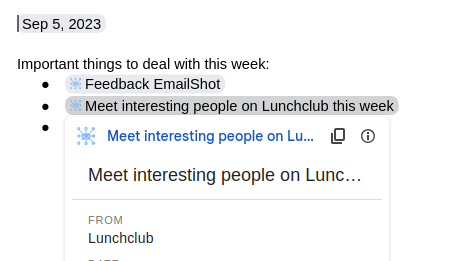
If Google doesn't prompt you automatically, you can also trigger the Smart Chip manually: with the cursor next to the pasted URL, press @ or use Insert > Smart Chips from the menu.
Step 4: Hover to preview
Hover your mouse over the chip to see a preview card showing the email content. Anyone with access to the document can do this — they don't need to have EmailShot installed, and they don't need to be logged into Gmail.
Practical Workflows
Project management documents
When writing a project brief, spec document, or post-mortem, you often need to reference emails that provide context — a client's initial request, a stakeholder approval, a vendor quote.
Instead of quoting the email inline (which loses formatting and context) or telling people to search their inbox, embed an EmailShot Smart Chip. The reader can hover to see the full email without leaving the document, then continue reading.
Example: A project brief in Google Docs that references the client's original requirements email as a Smart Chip. Reviewers hover over it to verify that the scope matches what was requested — without any back-and-forth forwarding.
Onboarding and training materials
New team members often benefit from seeing real examples of the emails your team sends and receives. Rather than pasting static screenshots that lose formatting and go out of date, embed EmailShot Smart Chips in your onboarding docs.
- Embed examples of well-written customer responses
- Show how your team handles escalations
- Reference the templates your sales team uses for outreach
Because the Smart Chip links to a live EmailShot, the email renders with full formatting. If you update the underlying email or create a new version, you can update the link in the document.
Example: An onboarding Google Doc for new support agents that embeds Smart Chips for 10 example customer emails — ranging from simple inquiries to complex escalations — so new hires can see real cases in context.
Meeting notes and decision logs
Important decisions often happen over email before they're recorded anywhere. When you're documenting a decision in a shared Google Doc, embedding the email thread where the decision was made provides the full context.
Rather than summarizing the email (and losing nuance), or telling people to "check their inbox from March," embed the key message as a Smart Chip. The decision log stays compact, but the supporting evidence is one hover away.
Example: A quarterly planning doc that records the decision to move to a new vendor, with a Smart Chip linking to the email from the vendor with pricing terms, and another Smart Chip linking to the internal approval email from leadership.
Sales and CRM documents
Sales teams often work out of shared Google Sheets — deal trackers, pipeline reviews, account plans. Embedding EmailShot Smart Chips in these sheets connects the spreadsheet data to the actual email conversations driving each deal.
In Google Sheets, each cell can hold a Smart Chip. You can have a column for "Latest email" in a deal tracker, where each cell contains a Smart Chip linking to the most recent customer communication.
Example: A deal tracker Google Sheet where each row represents an opportunity. One column contains an EmailShot Smart Chip for the latest email from the prospect. Sales managers can hover over any chip during a pipeline review to get immediate context on where the conversation stands.
Slide presentations
Screenshots of emails in slide decks are almost always blurry, cropped too tightly, or out of date by the time the presentation is delivered. They also can't be zoomed into or interacted with.
An EmailShot Smart Chip in a slide is a clickable reference to the live email. During a presentation, you can click the chip to open the full email in a browser tab at any moment — showing the audience the real email with perfect formatting rather than a degraded screenshot.
Example: A quarterly business review deck that contains a Smart Chip on the "Customer Feedback" slide, linking to a particularly positive customer email. During the presentation, clicking the chip opens the full email in a browser for the audience to read.
Compliance and audit documentation
When documenting email-based approvals, contracts, or other compliance-relevant communications, embedding an EmailShot Smart Chip in a Google Doc provides a permanent, verifiable reference to the original email.
Use EmailShot's retention settings to ensure the link never expires, and optionally password-protect sensitive emails so only authorized team members can view them. The Smart Chip in the document becomes the canonical reference to the original communication.
Example: An audit trail Google Doc listing all vendor contracts approved by email in a fiscal year, each represented as a Smart Chip linking to the original approval email.
Tips for Getting the Most Out of Email Smart Chips
Use descriptive subject lines. The email's subject line becomes the Smart Chip label. If the email has a vague subject ("Re: stuff"), the chip won't be informative. When possible, send or request emails with clear, descriptive subjects — or use EmailShot's options to share only the relevant email in a thread rather than a reply with a generic "Re:" subject.
Configure privacy before sharing. If the email contains personal information that shouldn't be visible to everyone with document access, use EmailShot's anonymization options before generating the link. You can hide the sender's name and email address, remove CC recipients, and strip other identifying details.
Set expiration for temporary references. If you're embedding an email that's only relevant during a specific project or time period, set an expiration date in EmailShot so the link stops working once it's no longer needed. This reduces the risk of sensitive information remaining accessible indefinitely.
Combine Smart Chips with comments. In Google Docs, you can add a comment to a Smart Chip to provide additional context — for example, "See this email for the original requirements; note that the deadline changed in the follow-up." This layered approach keeps your document concise while making all the context available.
Use in Google Sheets for bulk email references. Sheets is particularly powerful for embedding multiple Smart Chips in a structured way. A column of EmailShot Smart Chips in a tracker or log is far more useful than a column of raw URLs or email subject lines with no links.
Smart Chips vs. Alternatives
vs. Pasting a raw URL
A raw URL is visually noisy, takes up significant horizontal space in a document, and gives no indication of what the link contains until you click it. A Smart Chip collapses to a small, labeled element with a hover preview. The reading experience is significantly cleaner.
vs. Screenshotting the email
Screenshots lose interactive elements (links, buttons), look pixelated at high resolution, become outdated, and can't be zoomed into cleanly. An EmailShot Smart Chip always shows the live email at full fidelity.
vs. Forwarding the email
Forwarding creates inbox noise for the recipient, often breaks the email's formatting, gives you no access control, and produces a copy you can't revoke. An EmailShot Smart Chip in a shared document is accessible to anyone who needs it, in context, with full formatting preserved.
vs. Quoting the email text inline
Copying email text into a document strips formatting, loses headers and metadata, requires manual maintenance if the original changes, and can easily be taken out of context. A Smart Chip provides the full email in its original form, on demand.
Getting Started
If you haven't installed EmailShot yet, it takes about 30 seconds:
- Visit the EmailShot page on the Google Workspace Marketplace
- Click Install
- Authorize the requested permissions
- Open any email in Gmail — the EmailShot icon will appear in the toolbar
From there, generating your first Smart Chip is a matter of clicking EmailShot, copying the link, and pasting it into a Google Doc. Try it in a document you're actively working on — once you've used it once, it becomes automatic.
For more on what EmailShot can do beyond Smart Chips, see the getting started guide and the complete list of creation options.
Share any email easily with a simple direct link in just one click.
Install EmailShot